

Planview
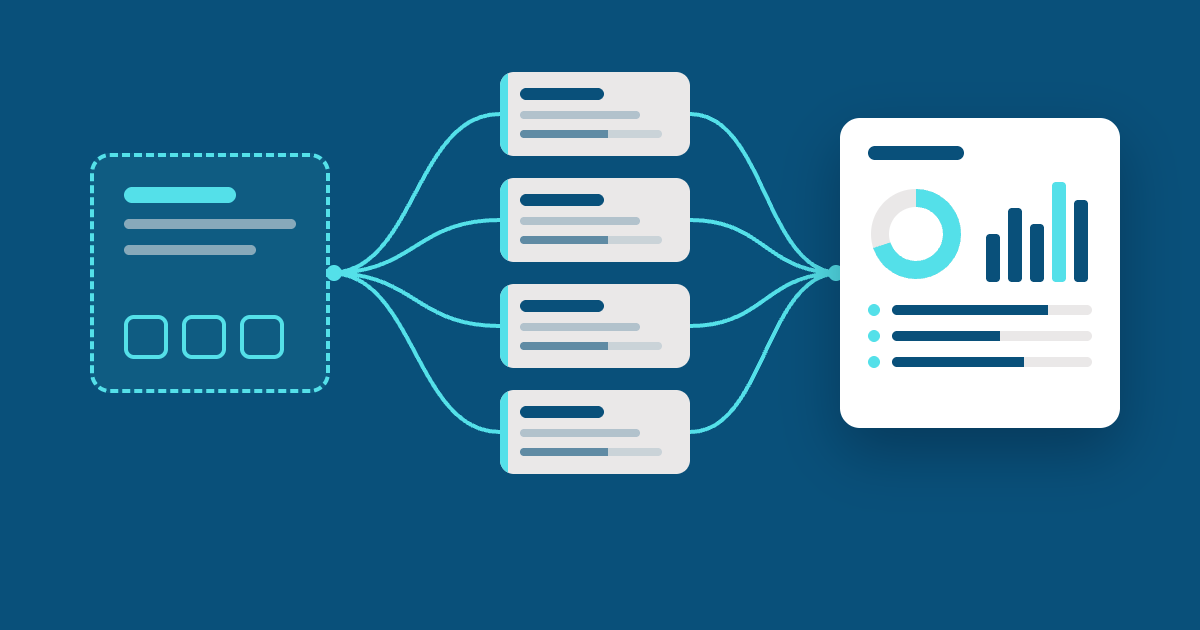

If your team runs a lot of similar projects in Smartsheet, you've likely reached the point where copying an old workspace and rebuilding the reports each time no longer works. Smartsheet now offers three ways to address that: Control Center, Portfolios, and the newly announced Advanced Portfolios. They overlap more than the names suggest, so choosing the right one depends on how many projects you run and how much control you need over them.
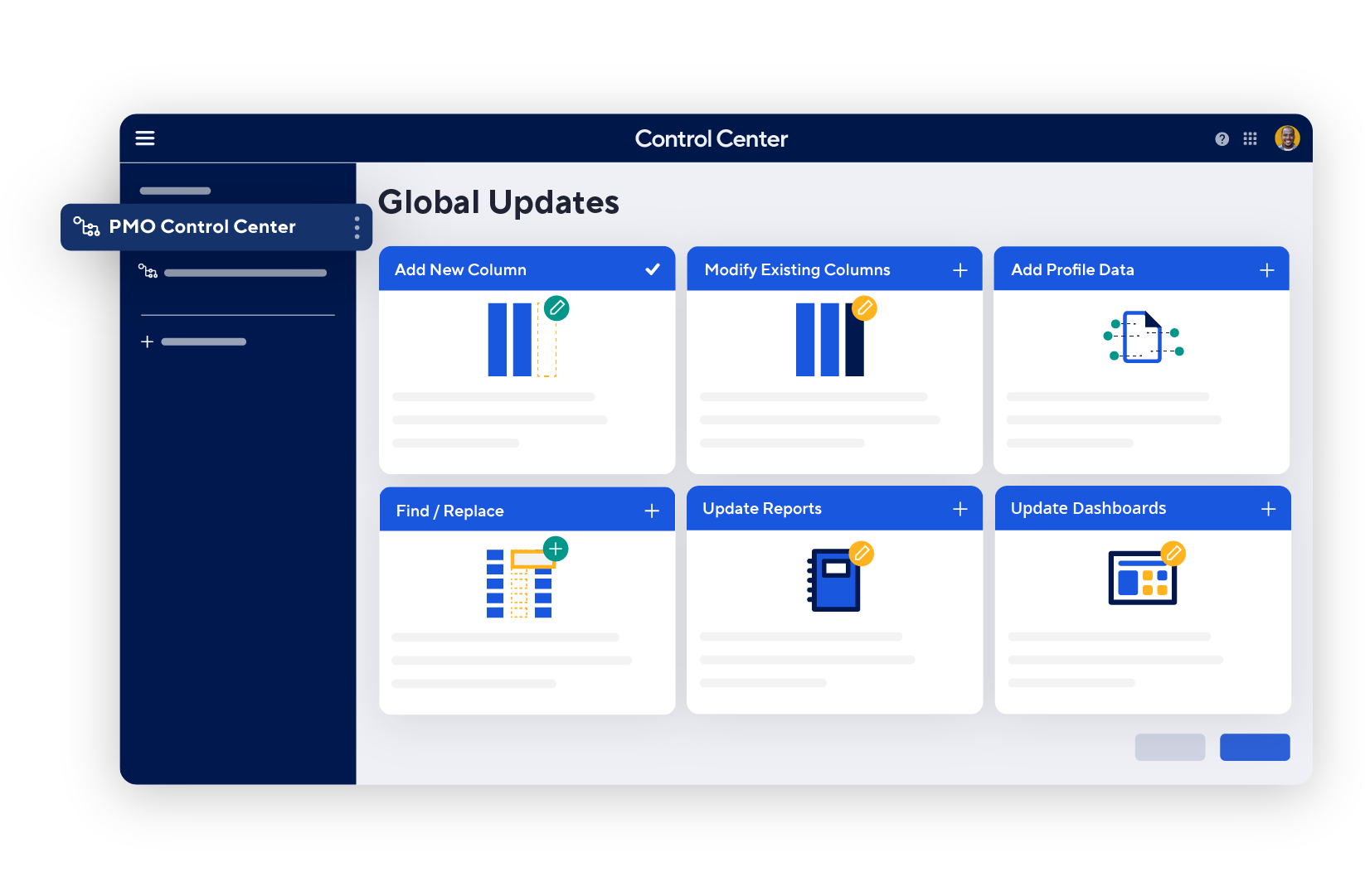
Smartsheet Control Center is a premium Smartsheet offering for managing many projects at scale. You define a blueprint once (the sheets, reports, dashboards, and forms that make up a project), and Control Center uses it to create new projects, push changes across active projects, and roll project data into portfolio reporting. It's included with Smartsheet's Advanced Work Management plan and sold as an add-on for other paid plans.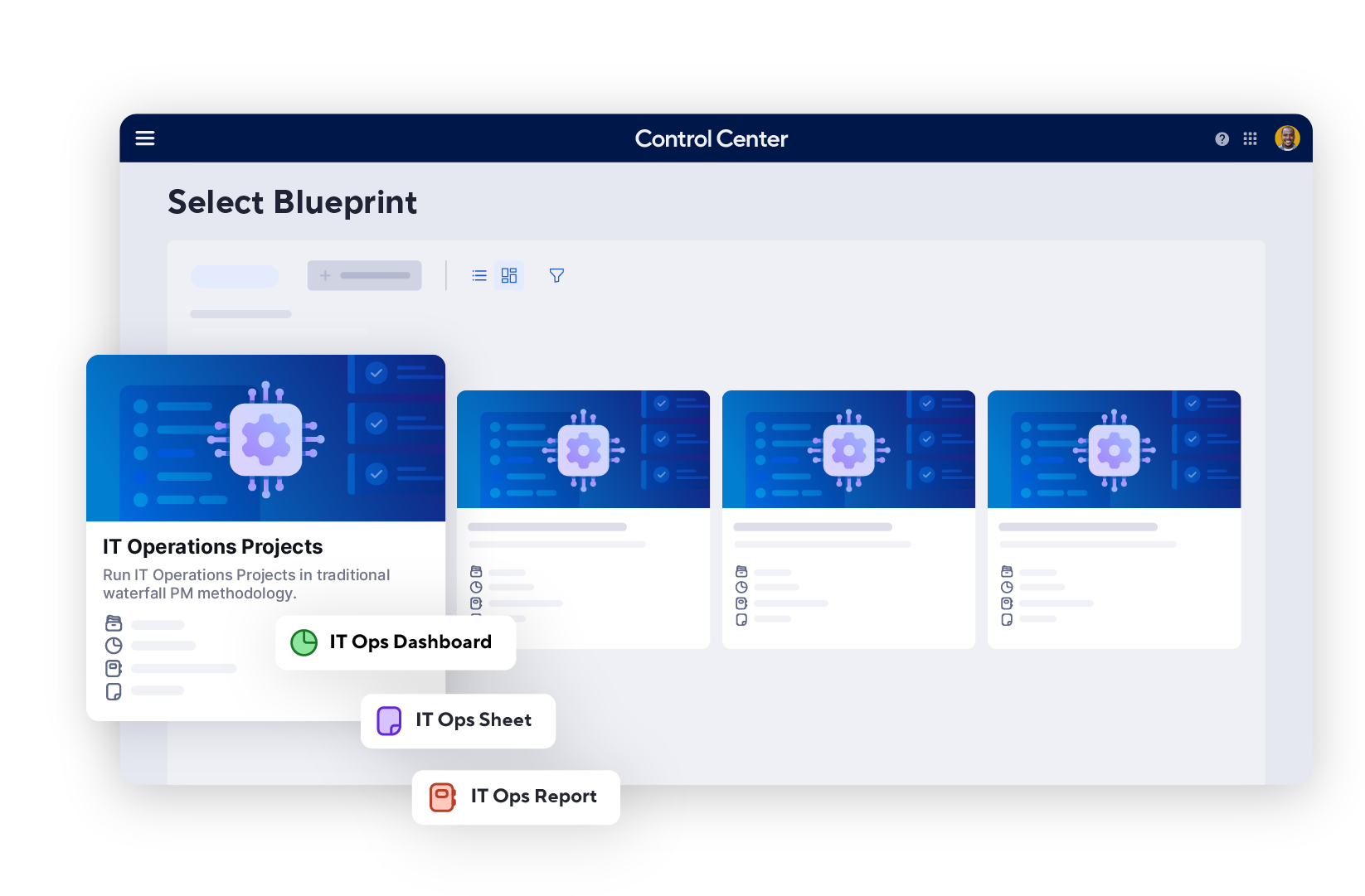
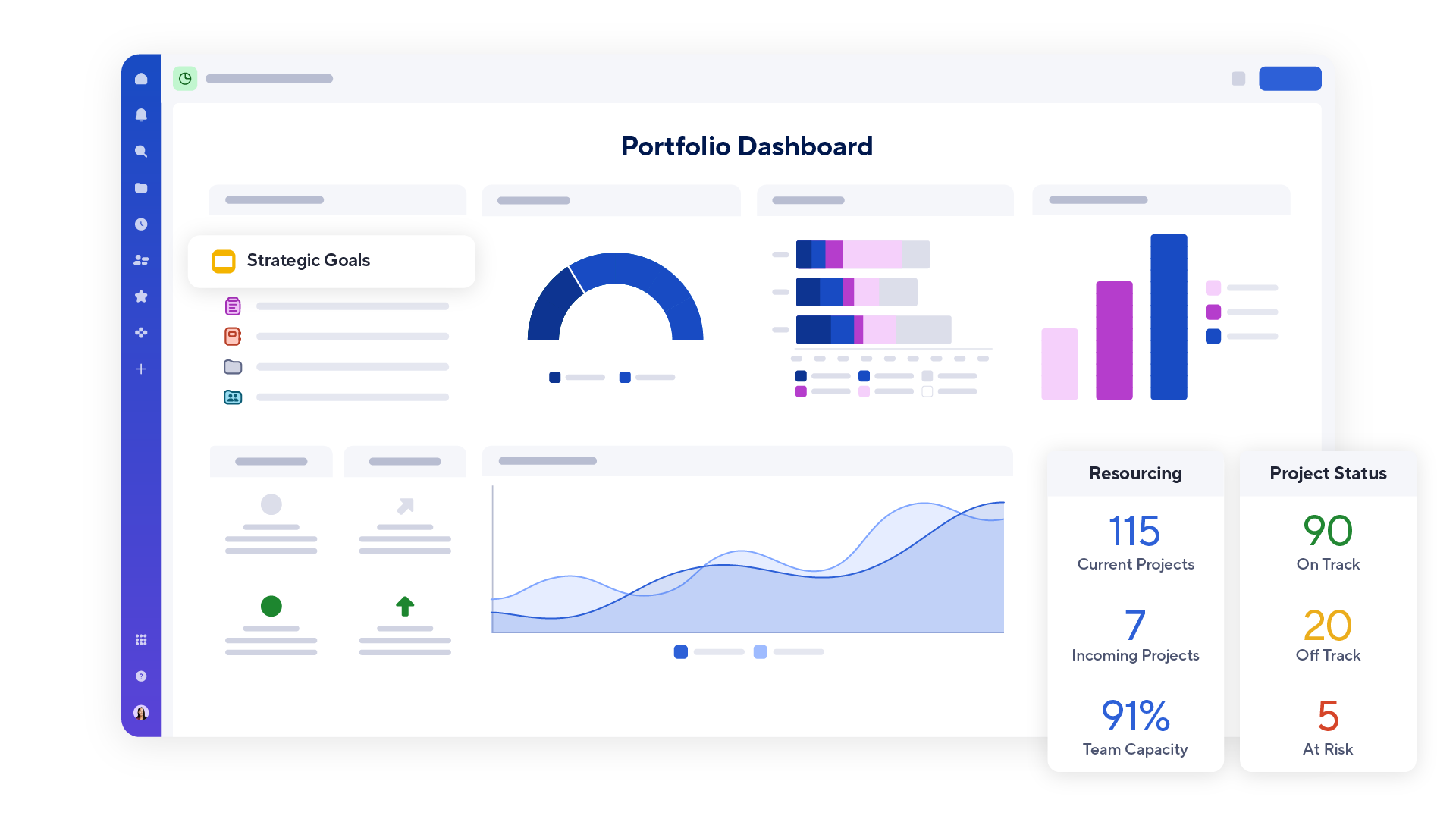
Control Center is built around three problems that show up once a portfolio grows past a handful of projects: leaders can't see across it, every project is set up a little differently, and the admin work grows with every new project.
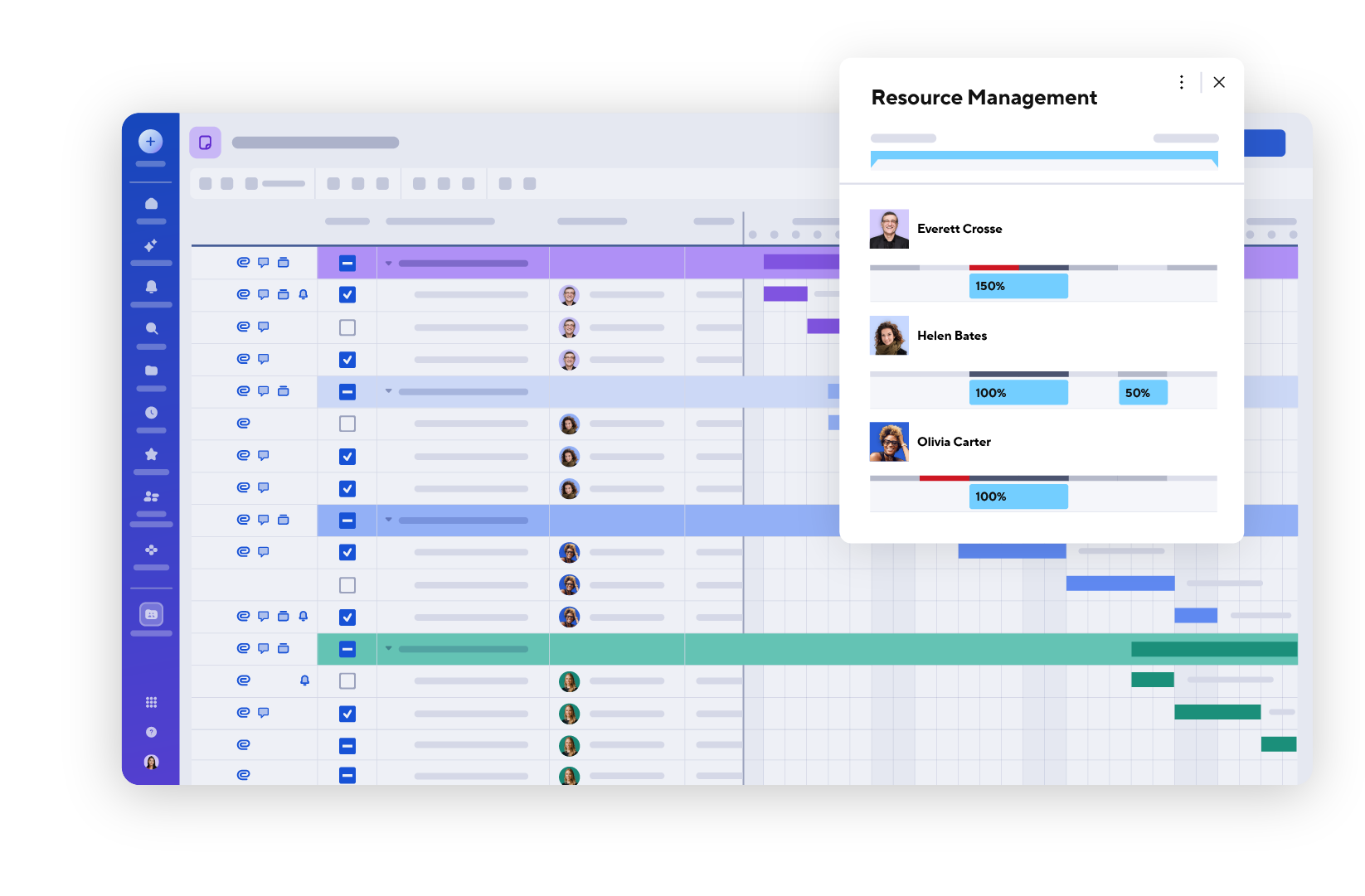
Portfolios is included with Smartsheet's Enterprise plan and is designed for teams and departments with simpler needs. Project leads can set up a standard template and spin up new project workspaces from it without a dedicated admin. Smartsheet recommends keeping each portfolio to around five templates and 100 projects. Resource Management, Dynamic View, and data integrations aren't currently supported in Portfolios.
Advanced Portfolios is Smartsheet's newest option, announced in November 2026. It builds on Portfolios for teams that run many similar projects and need each one held to the same standard. You can publish a change once and have every active project inherit it, connect project fields to the portfolio with linked summary fields, and see everything in a portfolio summary. It's included with Advanced Work Management and available as an add-on. It doesn't support multi-tier portfolios, Portfolio WorkApps, or the native Resource Management integration, which is where Control Center still stands apart.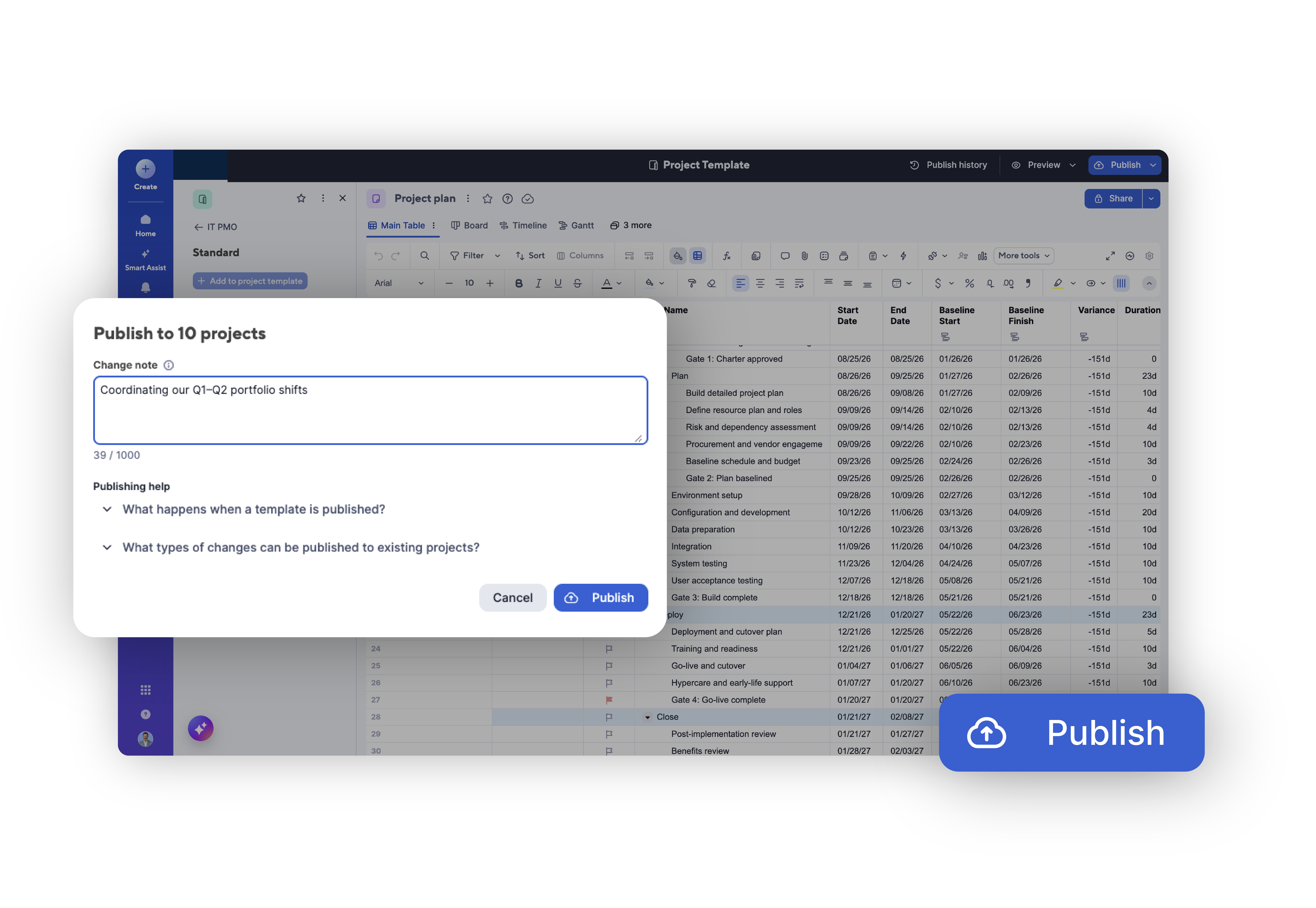
Here's how the three options compare on the features that usually decide it.
| Portfolios | Advanced Portfolios | Control Center | |
|---|---|---|---|
| Included with | Enterprise | Advanced Work Management, or as an add-on | Advanced Work Management, or as an add-on |
| Best for | Teams and departments with simpler needs | Many similar projects held to one standard | Large, complex programs |
| New projects from a standard template | |||
| Push changes to every active project | |||
| Multi-tier portfolios | |||
| Portfolio WorkApps | |||
| Resource Management integration |
The right fit depends on the scale and complexity of what you're managing. Portfolios is usually enough for a single department managing a manageable number of projects. Advanced Portfolios makes sense when you need tighter standards and want changes to flow automatically to every project. Control Center is the choice for large, complex programs that need multi-tier structures, role-based WorkApps, or resource planning tied directly to projects. It's worth deciding before you build, because rebuilding a portfolio in a different model later takes real time.
Not always. Portfolios works well for teams with simpler needs. If you need to push changes to every active project, Advanced Portfolios adds that. If you also need multi-tier portfolios, Portfolio WorkApps, or resource planning tied directly to projects, that's where Control Center fits.
Both create projects from a standard template and push changes across active projects. Control Center adds multi-tier portfolios, Portfolio WorkApps, and the native Resource Management integration, which makes it the better fit for large, complex programs. Advanced Portfolios is simpler to set up and run.
If you run a small number of projects that rarely change, or every project looks different, the setup and administration can outweigh the benefit. Portfolios or a well-built template is often enough.
Virelli sells and implements Smartsheet alongside the other work management platforms we work with. Our Smartsheet experts bring the same portfolio management depth we apply on every platform we sell, so our advice starts with what your portfolio needs rather than with a product. For portfolio management in Smartsheet, that usually means:
Talk with a Virelli Smartsheet expert about Control Center, Portfolios, and Advanced Portfolios, and what it would take to set up the right one.